
| 일 | 월 | 화 | 수 | 목 | 금 | 토 |
|---|---|---|---|---|---|---|
| 1 | 2 | 3 | 4 | 5 | 6 | 7 |
| 8 | 9 | 10 | 11 | 12 | 13 | 14 |
| 15 | 16 | 17 | 18 | 19 | 20 | 21 |
| 22 | 23 | 24 | 25 | 26 | 27 | 28 |
- 백준 파이썬
- 네트워크 결합
- LAN의 분류
- string유형
- C언어 스택 연산
- 괄호 검사 프로그램
- IPv4 주소체계
- getline()함수
- 유형 변환
- 입출력 관리자
- c언어 괄호검사
- 프로그래머스 배열만들기4
- l-value참조자
- const l-value참조자
- 원형 연결 구조 연결된 큐
- auto 키워드
- C언어 계산기 프로그램
- 범위 기반 for문
- r-value참조자
- 회전 및 자리 이동 연산
- 문자형 배열
- 문제해결 단계
- 주기억장치
- 알고리즘 조건
- 논리 연산
- const화
- 운영체제 기능
- 프로그래머스 푸드 파이트 대회
- C언어 덱
- 값/참조/주소에 의한 전달
- Today
- Total
chyam
[Unity] - 스프레드 시트와 연동하기 본문
데이터들을 쉽게 저장하기 위해 스프레드 시트를 사용하였다.
아래 블로그를 참고하여 작성하였다.
[Unity][C#] 유니티 - 스프레드 시트 연동하기
동물의 능력에 관한 시트이다. 이런 시트에서 한 행을 클래스 인스턴스화 하는 것과 전체를 리스트화하는 것을 알아볼 것이다. 1. 스프레드 시트 -> 텍스트 데이터 스프레드 시트를 텍스터 데이
minyoung529.tistory.com


먼저 스프레드 시트를 만들고 값들을 입력해준다.
그리고 이 시트의 주소를 확인해줘야하는데,

여기서 Address는 "/edit~~" 전까지이고, 고유 번호는 gid 뒤의 숫자이다.
이때, TSV 파일로 내보내기위해서는 아래와같은 방식으로 고쳐줘야한다.
TSV 파일은 구분자로 탭 문자를 이용하여 데이터를 저장하는 방식이고,
CSV는 구분자로 쉼표를 이용하여 데이터를 저장하는 방식이다.
{Address}/export?format=tsv&range={Range}&gid={SheetID}
주소를 반환해주는 함수는 아래와 같다.
public class ReadSpreadSheet : MonoBehaviour
{
    public readonly string ADDRESS = "https://docs.google.com/spreadsheets/d/1SUvkrIiBEfRl-J2_887gtT8MJNJgfKvjd-QEr4NglY0";
    public readonly string RANGE = "A2:B";
    public readonly long SHEET_ID = 0;

    void Start()
    {
        StartCoroutine(LoadData());
    }

    public static string GetTSVAddress(string address, string range, long sheetId)
    {
        return $"{address}/export?format=tsv&range={range}&gid={sheetId}";
    }

    private IEnumerator LoadData()
    {
        UnityWebRequest www = UnityWebRequest.Get(GetTSVAddress(ADDRESS, RANGE, SHEET_ID));
        yield return www.SendWebRequest();

        Debug.Log(www.downloadHandler.text);
    }
}
현재 내가 필요한 정보는 A2 ~ B열까지의 정보이므로, RANGE는 A2:B로 설정해주었다.
www는 http요청 보내서 데이터를 가져올수있고, 응답이 올때까지 대기한다.
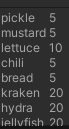
www.downloadHandler.text를 통해 콘솔에 출력해준다.
클래스 인스턴스화
Food_material이라는 클래스에 음식 이름과 소모 비용을 넣어주었다.
[System.Serializable]
 public class Food_material
 {
     public string name;
     public int cost;
 }
주의할 점으로는, 시트에 있는 데이터와 순서가 일치해야한다는 것이다.
T GetData<T>(string[] datas) // TSV 한 행을 T타입 객체로 변환하는 함수
{
    object data = Activator.CreateInstance(typeof(T)); // T 타입의 기본 생성자로 객체를 하나 만듬

    // 클래스에 있는 변수들을 순서대로 저장한 배열. 모든 필드를 배열로 받음
    FieldInfo[] fields = typeof(T).GetFields(BindingFlags.Public | BindingFlags.NonPublic | BindingFlags.Instance);
	// GetFields(..) : T 타입 안에 있는 필드 목록을 리플렉션으로 가져옴

    for (int i = 0; i < fields.Length; i++)
    {
        try
        {
            // 현재 i번째 필드의 자료형 가져옴
            Type type = fields[i].FieldType;

            if (string.IsNullOrEmpty(datas[i])) //빈 문자열일때 건너뜀
            	continue;

            // 변수에 맞는 자료형으로 파싱해서 넣는다.
            // 만든 data 객체의 i번째 필드에 값을 대입함
            if (type == typeof(int))
                fields[i].SetValue(data, int.Parse(datas[i]));

            else if (type == typeof(float))
                fields[i].SetValue(data, float.Parse(datas[i]));

            else if (type == typeof(bool))
                fields[i].SetValue(data, bool.Parse(datas[i]));

            else if (type == typeof(string))
                fields[i].SetValue(data, datas[i]);

            // enum
            else
                fields[i].SetValue(data, Enum.Parse(type, datas[i]));
        }

        catch (Exception e)
        {
            Debug.LogError($"SpreadSheet Error : {e.Message}");
        }
    }

    return (T)data; // 원래 타입 T로 캐스팅해서 반환
}
클래스 리스트화는 아래와 같다.
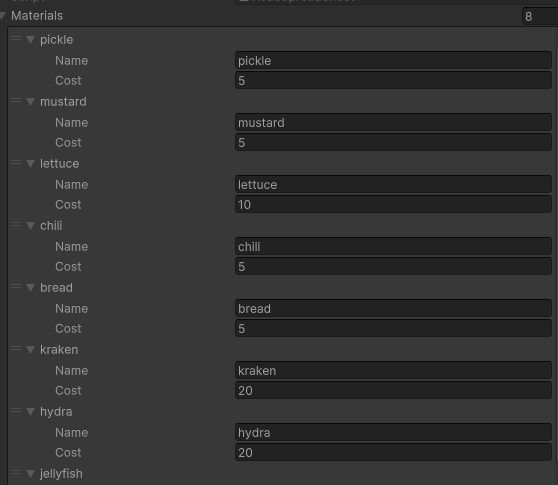
public List<Food_material> materials;

...

private IEnumerator LoadData()
{
    ...
    materials = GetDatas<Food_material>(www.downloadHandler.text);
}


List<T> GetDatas<T>(string data) // 데이터를 리스트에 모아주는 함수
{
    List<T> returnList = new List<T>(); // 빈 리스트
    string[] splitedData = data.Split('\n'); // 각각의 데이터들

    foreach (string element in splitedData)
    {
        string[] datas = element.Split('\t'); // mustard 5 이런식으로 탭 기준으로 나눠줌
        returnList.Add(GetData<T>(datas)); // 리스트에 추가해줌
    }
    return returnList;
}
returnList는 아래와같이 나타난다.
[
  { name = "mustard", cost = 5 },
  { name = "ketchup", cost = 3 },
  { name = "bread",   cost = 10 }
]
빈 오브젝트에 스크립트를 추가해주면 아래와 같이 나타난다.
전체 코드는 아래와 같다.
using System;
using System.Collections;
using System.Collections.Generic;
using System.Reflection;
using UnityEngine;
using UnityEngine.Networking;
public class ReadSpreadSheet : MonoBehaviour
{
public readonly string ADDRESS = "https://docs.google.com/spreadsheets/d/1SUvkrIiBEfRl-J2_887gtT8MJNJgfKvjd-QEr4NglY0";
public readonly string RANGE = "A2:B";
public readonly long SHEET_ID = 0;
public List<Food_material> materials;
[System.Serializable]
public class Food_material
{
public string name;
public int cost;
}
void Start()
{
StartCoroutine(LoadData());
}
public static string GetTSVAddress(string address, string range, long sheetId)
{
return $"{address}/export?format=tsv&range={range}&gid={sheetId}";
}
private IEnumerator LoadData()
{
UnityWebRequest www = UnityWebRequest.Get(GetTSVAddress(ADDRESS, RANGE, SHEET_ID));
yield return www.SendWebRequest();
Debug.Log(http://www.downloadHandler.text);
materials = GetDatas<Food_material>(http://www.downloadHandler.text);
//Debug.Log(GetData<Food_material>(http://www.downloadHandler.text.Split('\n')[0].Split('\t')).cost);
}
T GetData<T>(string[] datas) // TSV 한 행을 T타입 객체로 변환하는 함수
{
object data = Activator.CreateInstance(typeof(T)); // T 타입의 기본 생성자로 객체를 하나 만듬
// 클래스에 있는 변수들을 순서대로 저장한 배열. 모든 필드를 배열로 받음
FieldInfo[] fields = typeof(T).GetFields(BindingFlags.Public | BindingFlags.NonPublic | BindingFlags.Instance);
// GetFields(..) : T 타입 안에 있는 필드 목록을 리플렉션으로 가져옴
for (int i = 0; i < fields.Length; i++)
{
try
{
// 현재 i번째 필드의 자료형 가져옴
Type type = fields[i].FieldType;
if (string.IsNullOrEmpty(datas[i])) //빈 문자열일때 건너뜀
continue;
// 변수에 맞는 자료형으로 파싱해서 넣는다.
// 만든 data 객체의 i번째 필드에 값을 대입함
if (type == typeof(int))
fields[i].SetValue(data, int.Parse(datas[i]));
else if (type == typeof(float))
fields[i].SetValue(data, float.Parse(datas[i]));
else if (type == typeof(bool))
fields[i].SetValue(data, bool.Parse(datas[i]));
else if (type == typeof(string))
fields[i].SetValue(data, datas[i]);
// enum
else
fields[i].SetValue(data, Enum.Parse(type, datas[i]));
}
catch (Exception e)
{
Debug.LogError($"SpreadSheet Error : {e.Message}");
}
}
return (T)data; // 원래 타입 T로 캐스팅해서 반환
}
List<T> GetDatas<T>(string data) // 데이터를 리스트에 모아주는 함수
{
List<T> returnList = new List<T>(); // 빈 리스트
string[] splitedData = data.Split('\n'); // 각각의 데이터들
foreach (string element in splitedData)
{
string[] datas = element.Split('\t'); // mustard 5 이런식으로 탭 기준으로 나눠줌
returnList.Add(GetData<T>(datas)); // 리스트에 추가해줌
}
return returnList;
}
}
'unity' 카테고리의 다른 글
| [Unity] - UI 이미지 부드럽게 회전하기(Quaternion.Slerp) (2) | 2025.11.13 |
|---|---|
| [Unity] - UI 버튼 선택/해제 구현 (1) | 2025.09.01 |
| [unity] - 버튼 클릭하여 저장된 정보 불러오기 (1) | 2025.07.01 |
| [Unity] - JSON 파일 저장하고 불러오기 (1) | 2025.06.04 |
| [unity] - 인벤토리 아이템 클릭 시 설명창 띄우기 (0) | 2025.03.18 |


